Guide: How to sync a reaction video with the show and share it as a link
Line up a full reaction with the episode on your own Netflix, Prime Video or Crunchyroll once, and share it as a sync link. Anyone who opens it watches in step, and every link you share stays in My stuff.
Line it up once
You need ReactionSync in Chrome on a computer (Get Started takes a minute). The reaction can be on YouTube, Patreon, Vimeo or Google Drive, and the episode on Netflix, Prime Video, Crunchyroll or JioHotstar.
- Open both and press play. Put the reaction and the episode side by side, in two windows, and press play on both.
- Start a new session. Click the ReactionSync icon. Choose the show under 1. Source and the reaction under 2. Reaction, click Continue, then Start New Session.
- Line them up. Pause both on the same moment, for example where the reactor presses play on the episode, and click 🎬 Synced.
- Mark the pauses as you go. Flip the switch to Tabs Linked and let them play. Where the reactor stops the show to talk, click ⏸ Source Paused, then 🎬 Synced when it plays again. Click 🏁 End at the end.
The full step-by-step has a video, and covers intros and skipped scenes.
Share it as a link
- Click 🔗 Share Script at the bottom of the extension.
- Add a title and your name. The reaction and show addresses are filled in for you.
- Click Upload & Get Link, then Copy.
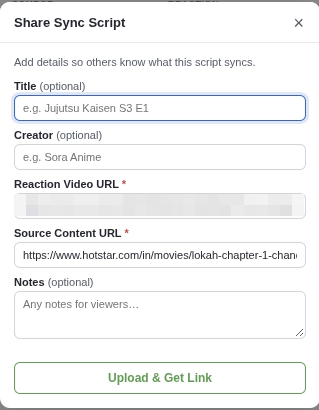
Anyone with the link can now watch that reaction in sync with their own copy of the show.
Find them all in My stuff
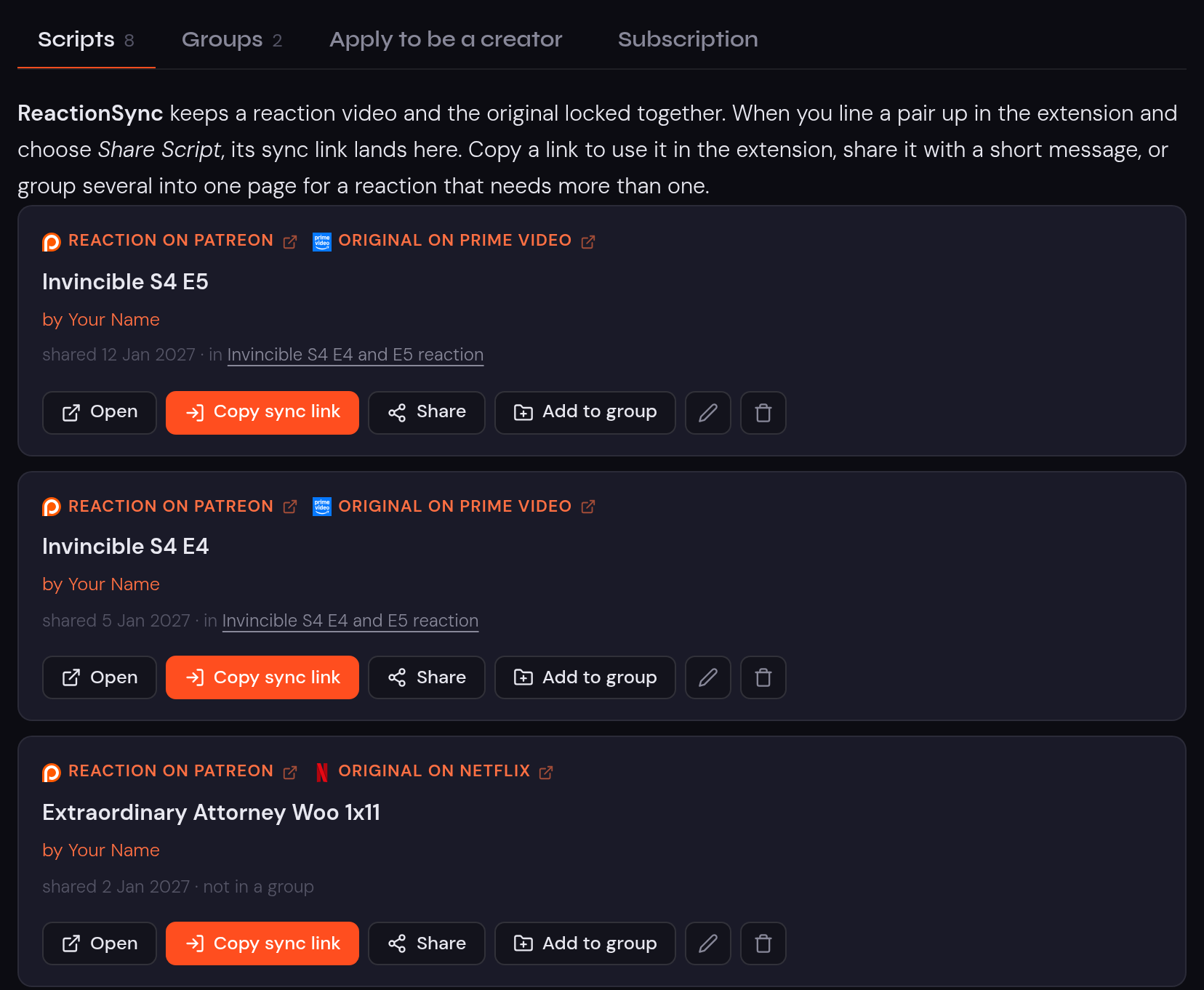
Every sync link you share is kept in My stuff, under Scripts, newest first. Each one shows the site the reaction is on and where the original plays. From there you can:
- Copy sync link, to paste it into the extension or a post.
- Share it, with a short message.
- Open its page, the one other people see.
- Edit its title, creator and notes, or delete it. A deleted link stops working.
To open My stuff, sign in on reactionsync.com with the Google account you use in the extension, or open it from the extension’s profile menu.
Put several links on one page
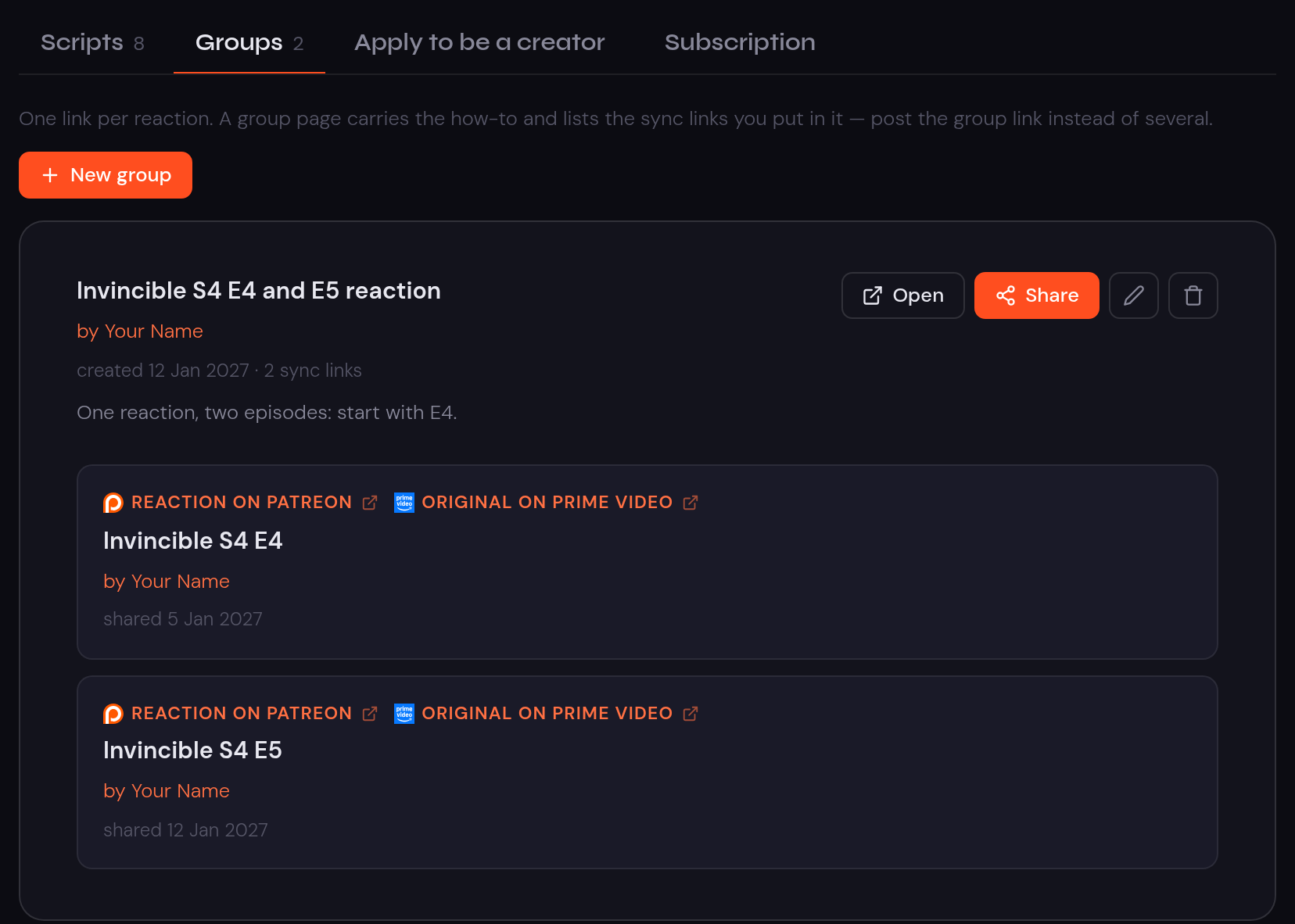
Some reactions need more than one sync link. A reaction might cover two episodes. Or the show might be on Crunchyroll for some viewers and on Netflix for others. Put the links in a group, and post one link instead of several.
- Open Groups in My stuff and click New group.
- Give it a title and your name. Add a note for viewers if you like.
- Add the sync links in the order viewers should watch them, then click Save.
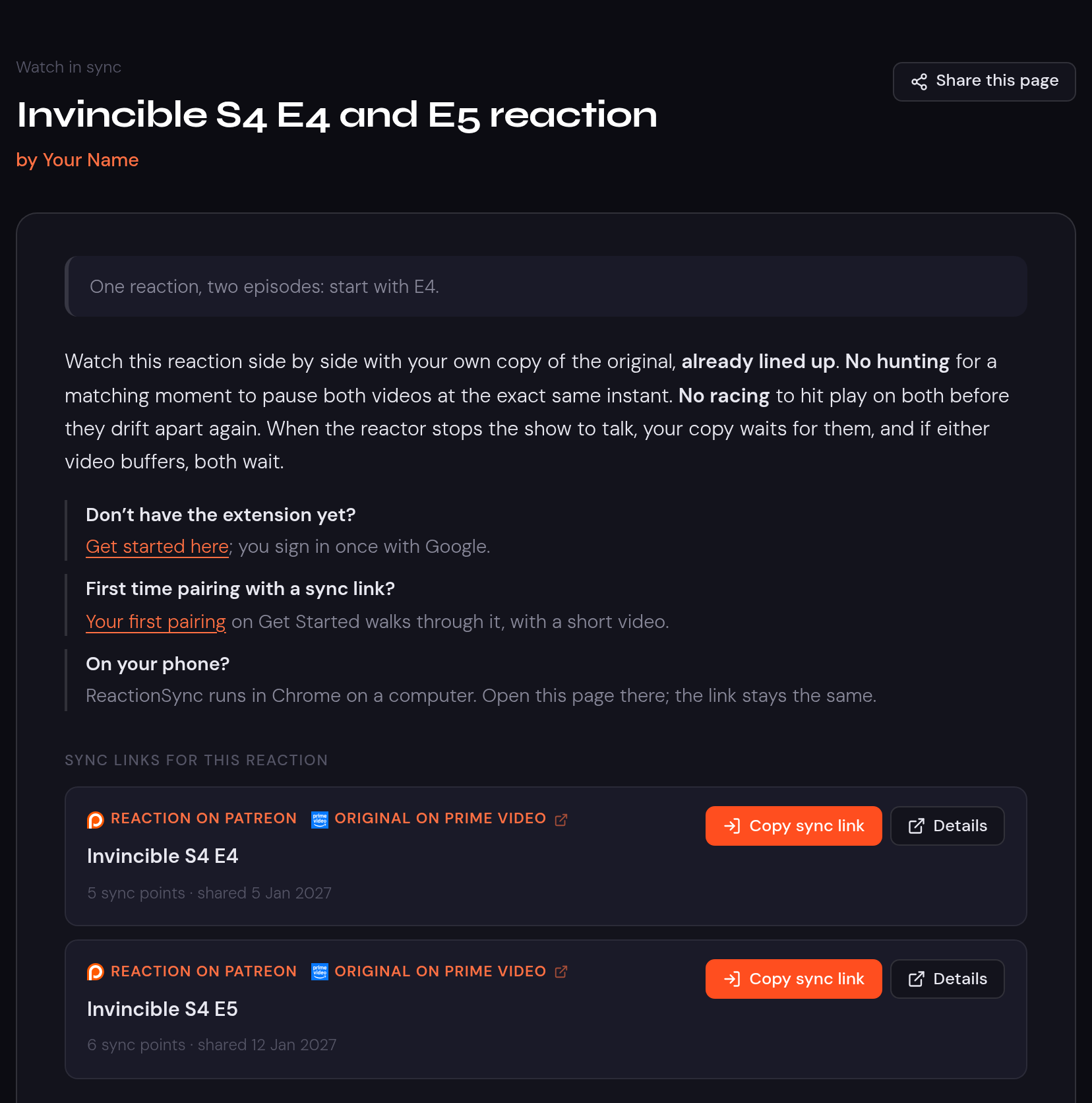
You can also put a link in a group straight from Scripts, with Add to group. The group’s page tells viewers what ReactionSync does and how to watch, then lists your links.
Post it where people will find it
Put the link where the reaction lives, with a line in your own words: the Patreon post, the video’s description or a pinned comment, or a Discord.
The link’s page names only the site the reaction is on, never its address. So sharing a sync link never gives away an unlisted or paid-only reaction.
Got a link from someone else? Our guides show how to watch with it on Netflix, Prime Video and Crunchyroll.
Make reactions? Get your own page
Creators can show the sync links and groups they choose on their own page, give their viewers a creator code, and earn an additional revenue stream. Here’s how the creator program works.
Questions, or a service you need? Write to support@reactionsync.com. Karthik, who built ReactionSync, reads every message.
Get Started
Add ReactionSync to Chrome, sign in once with Google, and your first reaction plays in sync in about a minute.
Get Started